ComfyUIの公式テンプレートにMOSS-Imageの画像編集と、写真から取り出した形・奥行きを生成に使う色・深度制御のワークフローが加わりました。
元画像を編集する方法と、形を手掛かりに生成する方法
二つのテンプレートはMOSS-Image SFTに用途別のLoRAを組み合わせます.
- MOSS-Image: Image Edit LoRA:元画像と編集指示を渡し、衣装・色・照明・画風などを変更
- MOSS-Image: Color & Depth Control:色分けした領域や深度を条件に、物体の位置・大きさ・ポーズ・前後関係を指定して生成
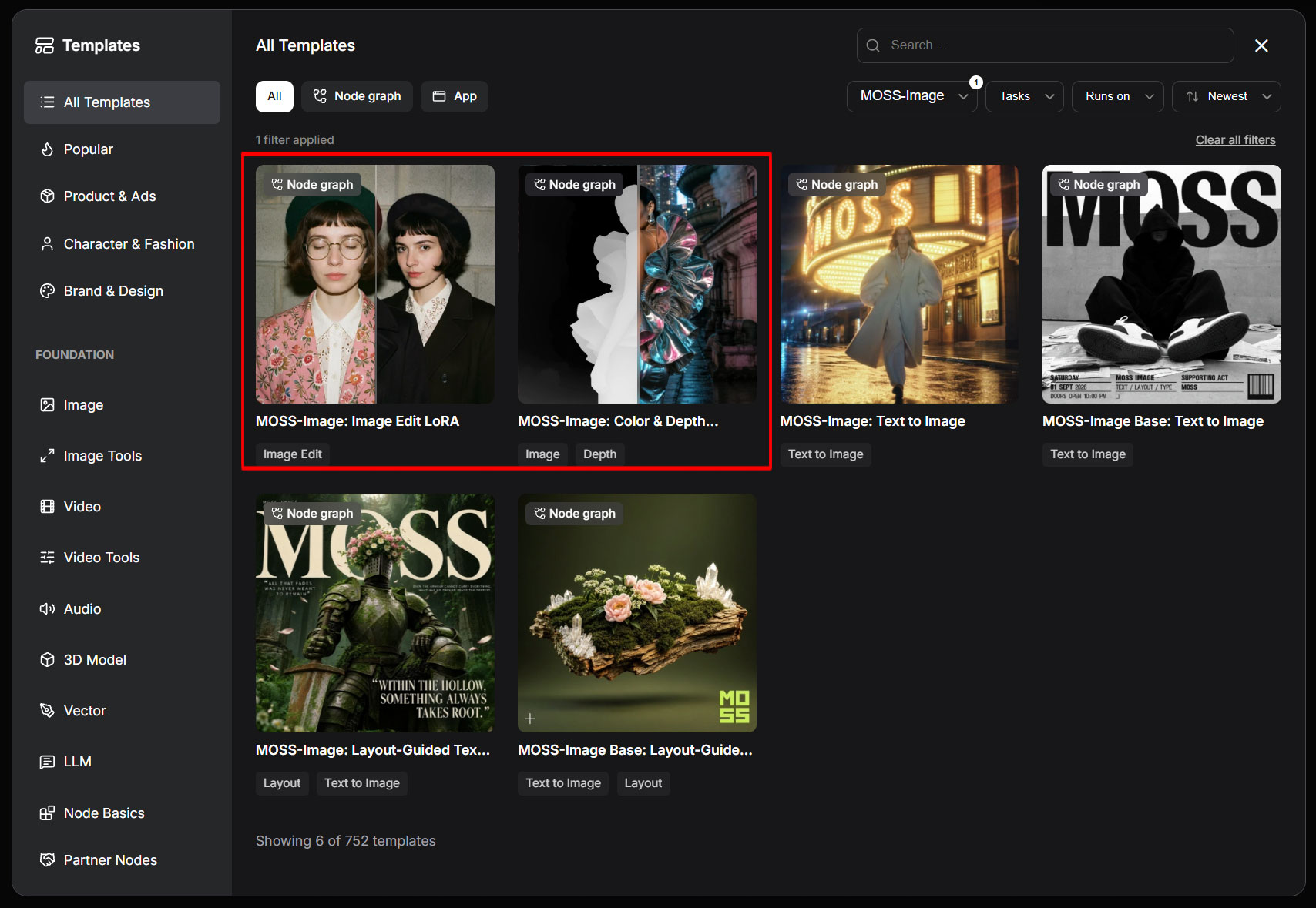
テンプレートはComfy-Orgが配布しています。

Image Edit LoRAは画像と変更指示を一緒に使う
「MOSS-Image: Image Edit LoRA」は、読み込んだ画像を約1MPへ調整し、縦横比を保ちながら幅と高さを16ピクセル単位にそろえます。この画像を参照に使い、同じ寸法で編集結果を生成します。
編集指示を処理するノードはText Encode MOSS-Image Editです。文章と、VAEで変換した参照画像を生成条件として渡し、編集LoRAを適用したMOSS-Image SFTで新しい画像を描きます。
編集方式とテンプレートの設定
Text Encode MOSS-Image Editノードの下部にあるedit_formatは、使用する編集LoRAの学習方式に合わせる項目です。
配布設定は30 steps、CFG 4、Euler/normal、denoise 1です。編集LoRAの強度は1で、SkipLayerGuidanceDiTSimpleのsingle_layersには22が入っています。
Color & Depth Controlは写真から形と奥行きを取り出す
「MOSS-Image: Color & Depth Control」は、写真をMoGe 3へ渡し、推定した形状から深度マップを作る経路を備えています。
深度マップは、近い部分を白く表す画像です。顔の向きや肩の輪郭、物体の前後関係などを生成へ反映する手掛かりになります。写真の構図を使いながら衣装や背景を別の表現へ変える際に、文章だけでは伝えにくい形状を画像の条件として渡す仕組みです。
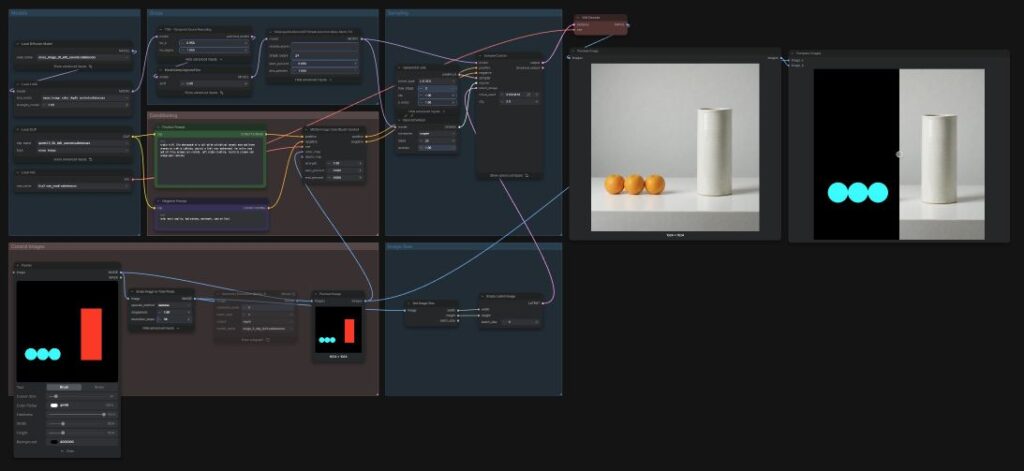
色マップは、物体や領域を単色で塗り分けた画像です。各色は領域を識別するためのIDとして働き、完成画像の衣服や物体の色はプロンプトで指定します。黒は指定を置かない領域に使い、マップの寸法は出力画像に合わせます。
- 深度マップ:物体の形と奥行き、前後関係を指定
- 色マップ:物体ごとの領域、位置、大きさを指定
- 両方のマップ:領域の区切りと奥行きを併用
現在の配布状態は、MoGe 3からの出力がdepth_mapへ接続されています。color_mapは未接続で、手描き用のPainterが別途配置されています。配布構成の初期状態は写真から作った深度による制御です。
制御を効かせる強さと区間
MOSS-Image Color/Depth Controlのstrengthは、マップが生成へ与える寄与度を調整します。初期値は1で、start_percentは0、end_percentは0.6です。生成途中でマップの制御を終え、残りの区間では条件を緩めて描写を仕上げる構成になっています。
制御LoRAの配布元による3Dマネキンの比較では、生成の全区間を制御した画像にマネキンの表面表現が残り、途中で制御を終えた画像では人物らしい描写になっています。これは領域別プロンプトを併用するHayateでの比較結果です。
生成結果
Image Edit LoRA:テンプレートでの生成
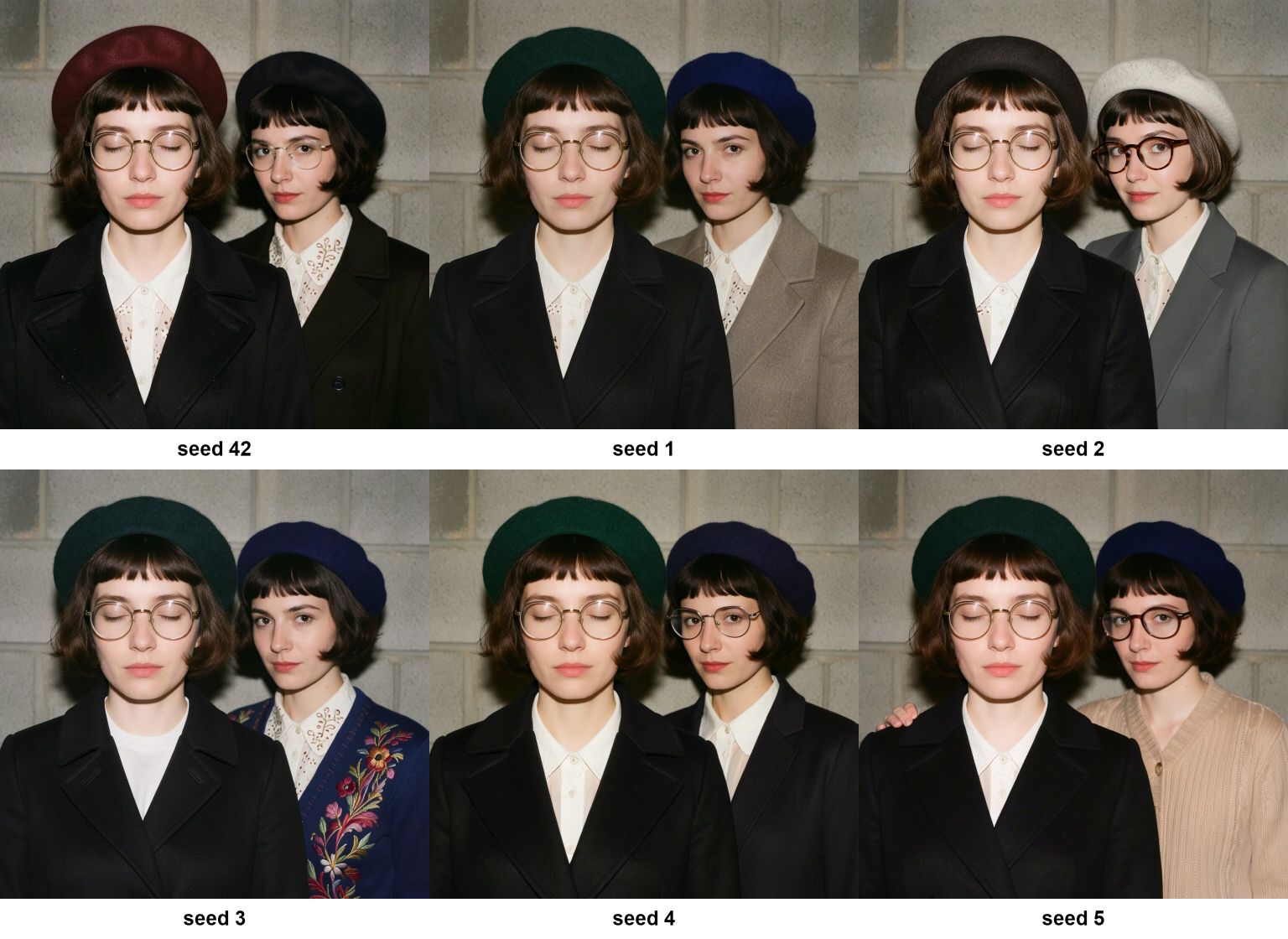
二人の女性の衣装編集は、指定外の衣装と小物にも変化がありました。
Change only the pink floral blazer to a plain black wool coat. Keep both women, their faces, glasses, berets, poses, the embroidered cardigan and the concrete wall background unchanged.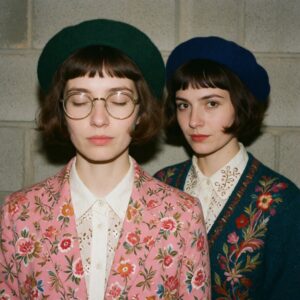
- ピンクの花柄ブレザーを無地の黒いウールコートへ変更
- 人の顔、眼鏡、帽子、姿勢、右奥の刺繍入りカーディガン、コンクリート壁の背景を維持
という指定ですが、seed3以外は衣裳や眼鏡が大きく変わっています。
RTX4070 Ti Super VRAM16GB,RAM64GB環境、生成時間は約19秒でした。
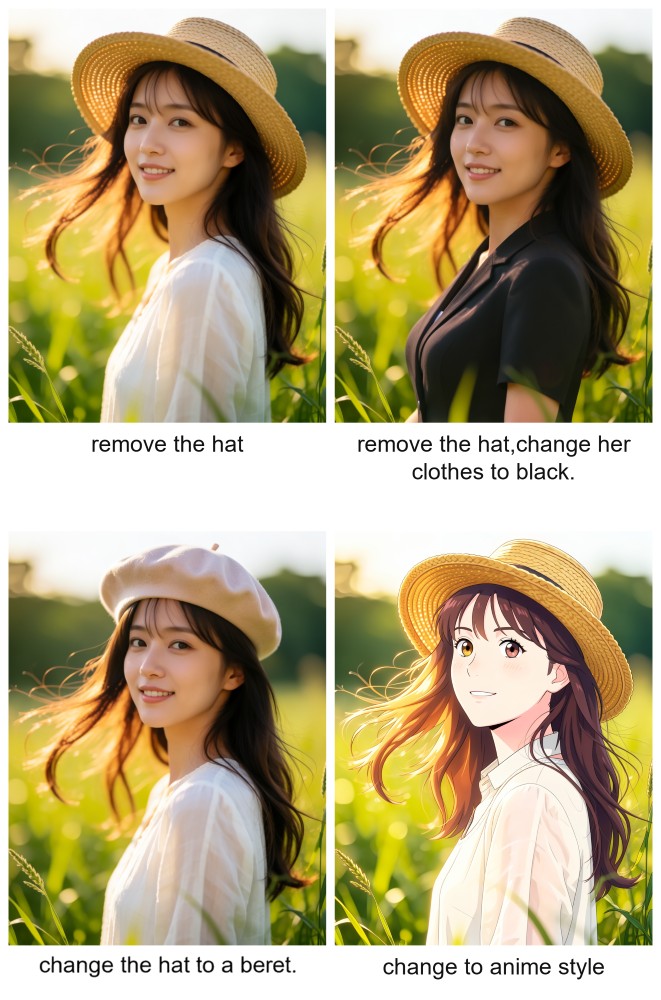
帽子を取るシンプルな編集
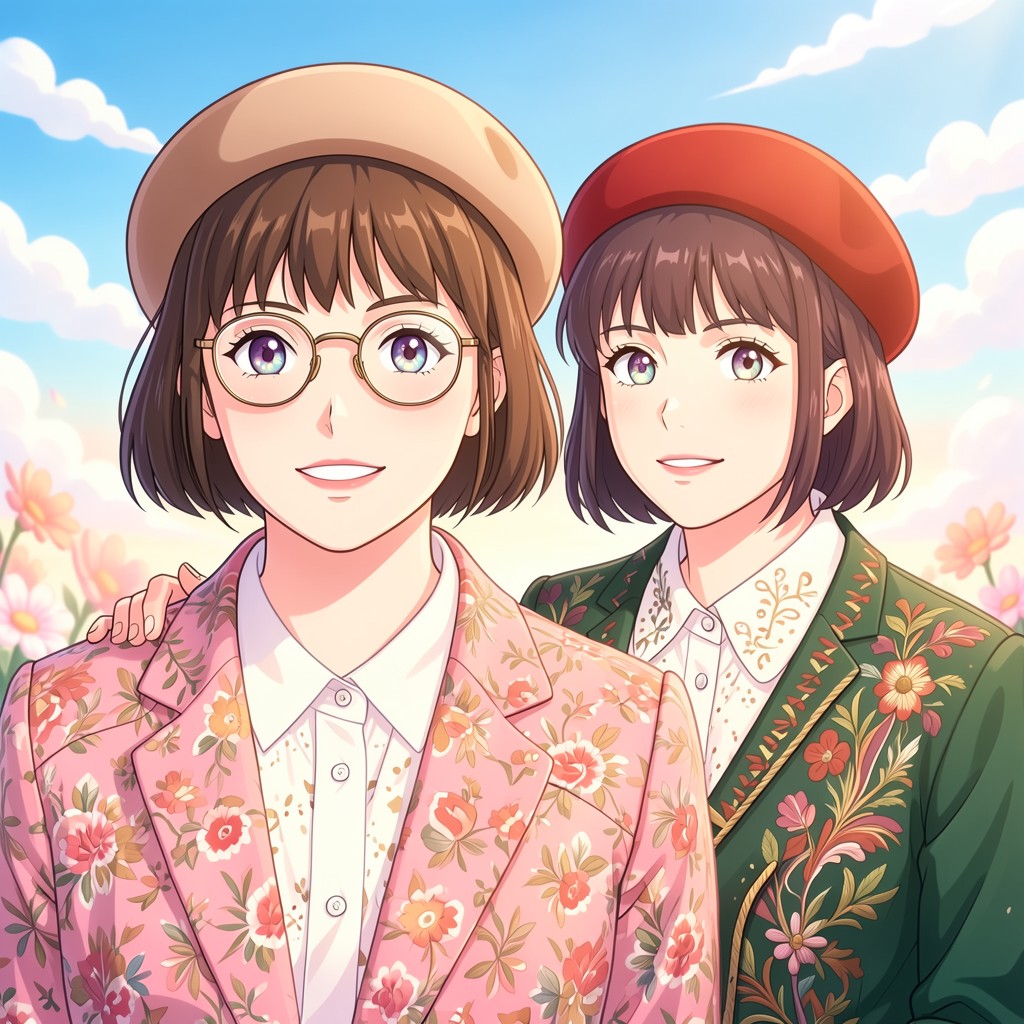
プロンプト「remove the hat」は変化がありませんでした。
服を黒にする、帽子を変更する、は効きました。
水彩画に変更
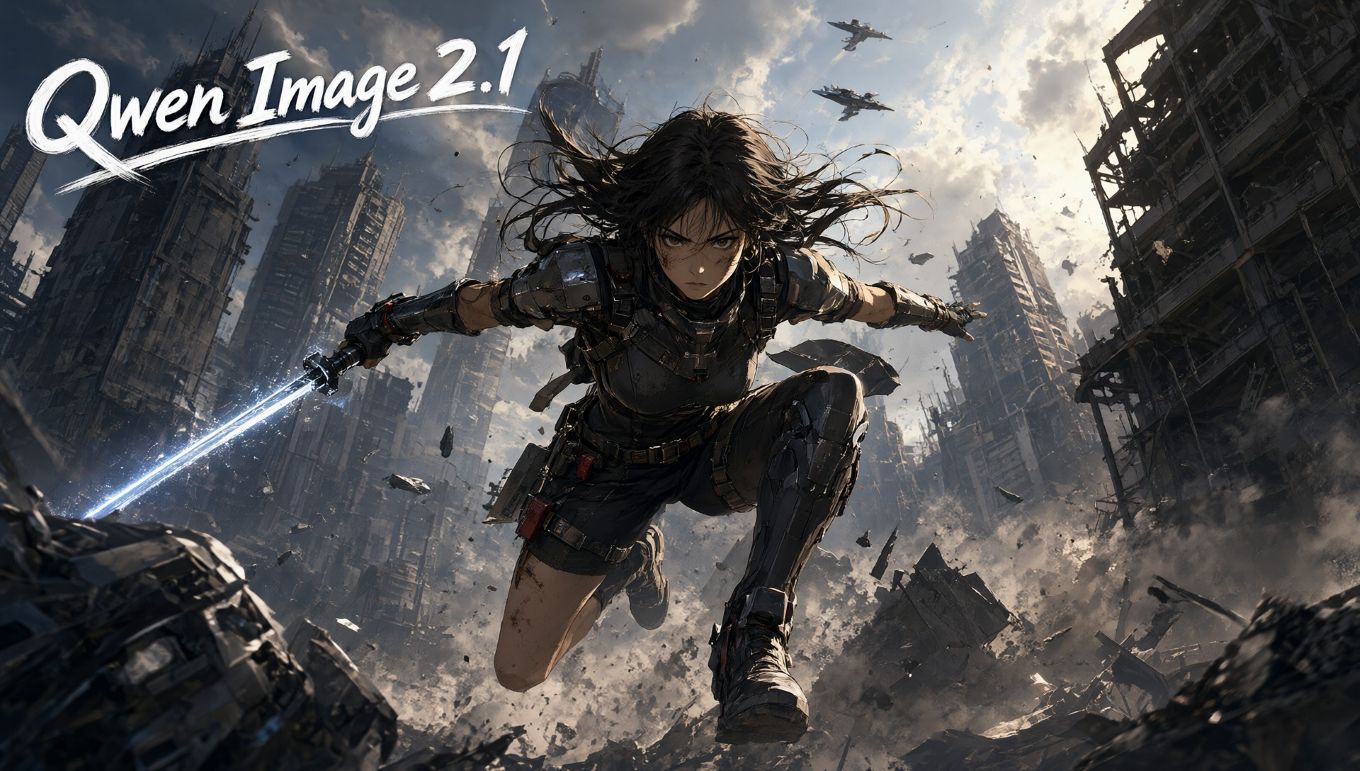
指示内容:左上のタイトルを、大きく白い筆文字の「MOSS Image」という表記に差し替えてください。また、構図はそのまま維持しつつ、イラストを水彩画に変更してください。
Replace the title at the upper left with the exact words "MOSS Image" in large white brush lettering. Change the illustration to a watercolor painting, keeping the composition the same.入力画像
出力画像

Color & Depth Control:テンプレートでの生成
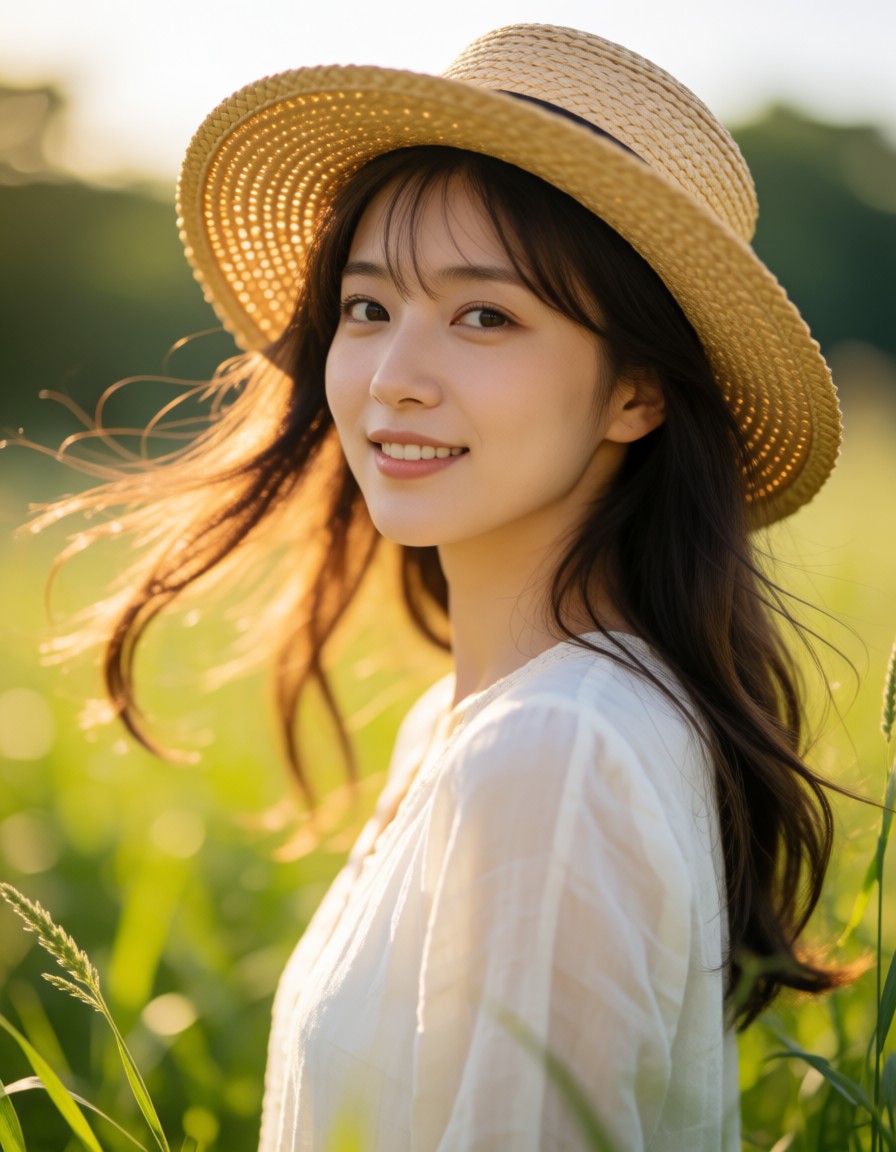
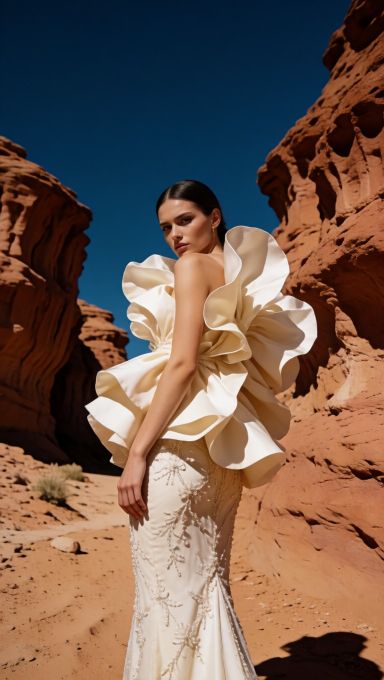
現在配布されてるテンプレートの入力画像は峡谷で白いドレスを着た女性ですが、初期プロンプトには二つのお団子ヘアと金のフープイヤリングを着け、ボンバージャケットとクロップトップを着た女性を、夜の街路でフラッシュ撮影する内容だったので変更しました。
Editorial fashion photograph of a woman standing on a street at night, looking back over her bare shoulder toward the camera, one arm hanging down beside her body. Her dark hair is center-parted and pulled back. She wears a red gown with large sculptural petal-like ruffles around her back and waist and a fitted skirt decorated with floral beadwork. A low viewpoint frames her from her head to her lower skirt. The night street forms the background. Direct on-camera flash illuminates her face and gown, casting hard shadows on the wall behind her, with slightly blown highlights.入力画像
出力画像

Color & Depth Control:Color制御
簡単な色分け図から写真の構図を指定しました。文章とseedをそろえたまま図の左右を入れ替えると、生成された花瓶と果物の配置も入れ替わりました。
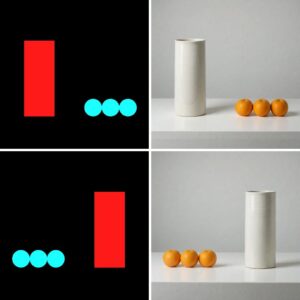
studio still life photograph of a tall white cylindrical ceramic vase and three oranges on a white tabletop, against a light gray background. the entire vase and all three oranges are visible. soft studio lighting, realistic ceramic and orange peel textures.Color入力に渡すカラーマップは、物体や領域を単色で塗り分けた画像です。色は領域を区別するIDとして働き、図の形・位置・大きさが生成の条件になります。今回の図では、黒い部分を未指定の背景として使いました。